


I recently needed to transfer an archive of 1,934 photos and videos, about 9.4 GiB in total, from Microsoft OneDrive for Business over to Google Drive. The goal was to build an independent secondary backup in a folder named Backup/Photos.
On paper, moving files between two major cloud providers sounds like a routine task. In practice, commercial cloud providers are closed ecosystems with no direct way to copy data between each other. The manual approach of downloading gigabytes of data to a local drive and re-uploading it wastes local disk space and takes twice as long. That led me to rclone, an open-source command-line tool designed to connect cloud storage backends and stream data between them in memory without writing temporary files to disk.
While rclone solved the local disk problem, the transfer itself had several hidden traps. Along the way, I ran into local upload bottlenecks, misleading simulation output, silent verification downgrades, and API limits. Here is how the process actually works, the mistakes to avoid, and the setup I now use to run and verify cross-cloud transfers reliably.
The Initial Attempt: Setup and First Steps
To begin, I installed rclone and launched its interactive configuration tool:
brew install rclonerclone config
Through rclone config, I created two remotes. The first was onedrive:, authenticated through Microsoft Graph. The second was gdrive:, authenticated with Google Drive. In Microsoft 365 accounts, make sure to pick your real drive rather than any secondary document libraries that might show up in the list.
Before copying any files, I listed the top-level directories on both remotes to make sure the paths were valid:
rclone lsd onedrive:"Photos/Archive"rclone lsd gdrive:
Both remotes responded cleanly, so the connection and folder names were working.
Next, I wanted to preview the transfer before moving gigabytes of data across the internet. I ran rclone copy with --dry-run to simulate the operation, paired with -P to view live progress:
rclone copy onedrive:"Photos/Archive" gdrive:"Backup/Photos" --dry-run -P
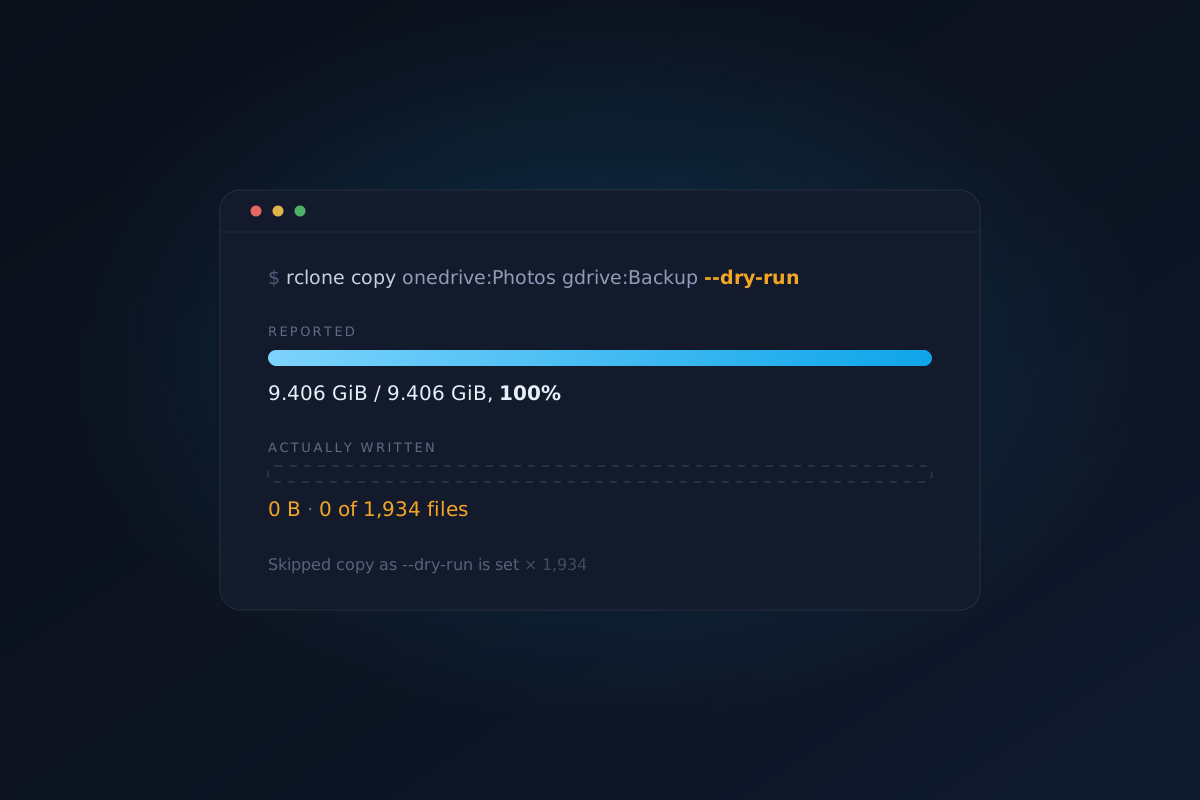
The command ran in five and a half seconds, and the terminal output concluded with this summary:
Transferred: 9.406 GiB / 9.406 GiB, 100%Transferred: 1934 / 1934, 100%Elapsed time: 5.5s
Because the summary printed 100% transferred across all 1,934 files, I assumed the transfer had already finished. I then ran an immediate verification check to confirm that the files were on Google Drive:
rclone check onedrive:"Photos/Archive" gdrive:"Backup/Photos" --one-way
Instead of confirming a clean match, rclone flooded the terminal with 1,934 error lines. Every single file reported file not in Google drive root. Nothing had actually been transferred. That result prompted a deeper look into what was really happening behind the scenes.
Five Realities of Cross-Cloud Transfers
Investigating the missing files revealed several technical details about how cross-cloud migrations operate.
1. Data streams through your local machine
It is easy to assume that rclone triggers a server-to-server transfer between Microsoft and Google datacenters. In reality, server-side copies only work within the same cloud provider. Because Microsoft and Google do not provide a shared transfer bridge, every byte must travel through the machine running rclone. The tool downloads each file into RAM and immediately uploads it to Google Drive.
Because of this architecture, your download speed is mostly irrelevant. Your local upload bandwidth dictates the entire duration. On a home connection with a 2 Mbps upload speed, transferring 9.4 GiB takes more than 11 hours. Concurrency flags can keep network queues full, but they cannot make your internet connection faster than its physical limit.
Physical limit: payload ÷ bandwidth
At a residential upload speed of 2 Mbps, moving 9.4 GiB takes about 11.2 hours. Parallelization optimizes concurrency, but bandwidth determines total time.
| Sustained Upload Bandwidth (Mbps) | Transfer Time (Hours) |
|---|---|
| 2 | 11.22 |
| 5 | 4.49 |
| 10 | 2.24 |
| 20 | 1.12 |
| 50 | 0.45 |
| 100 | 0.22 |
| 200 | 0.11 |
2. A dry run reports what would happen, not what did happen
When I tested the command with --dry-run, rclone simulated the planned operations. It traversed the source directory, queried destination metadata, and calculated what needed to move. As it processed each file, it output a notice:
NOTICE: Photos/2019/IMG_20190412.jpg: Skipped copy as --dry-run is set
Because 1,934 lines flashed past within five seconds, those notices scrolled off the screen immediately. What remained was the final statistics block. rclone formats that block using the same template it uses for real transfers, including the past-tense word Transferred. That wording made a rehearsal look like a completed job.
3. Verification fell back to file size due to hash mismatches
When verifying transfers between drives, we usually expect cryptographic checksums like MD5 or SHA-256 to confirm file contents. However, different cloud storage backends compute different hash algorithms.
OneDrive for Business computes QuickXorHash, an algorithm developed by Microsoft for fast multi-threaded hashing. Google Drive computes MD5, along with SHA-1 or SHA-256 on certain files. Because the two providers do not share any common hash algorithm, rclone check cannot compare checksums. Instead, it quietly falls back to comparing file names and file sizes. While matching file sizes is a strong practical indicator, it does not guarantee bit-for-bit integrity.
4. Sleep mode can kill an overnight transfer
When a transfer takes 11 hours on a laptop, leaving it running unattended introduces power management issues. The moment your computer enters idle sleep, the operating system drops active network sockets and the transfer terminates midway.
5. Provider limits and memory spikes
Cloud providers enforce strict usage caps. Google Drive limits account uploads to roughly 750 GB in a rolling 24-hour window, after which uploads fail with API quota errors. Microsoft 365 throttles high-frequency requests with HTTP 429 status codes when too many calls occur at once. Furthermore, each concurrent upload thread buffers its active chunk in memory, so aggressive concurrency can consume enough RAM to crash rclone on smaller virtual machines.
What to Avoid When Copying Between Cloud Drives
Experiencing these issues highlighted several common mistakes that are easy to make during cross-cloud transfers:
| Mistake | Why it fails | Consequence |
|---|---|---|
| Assuming direct cloud-to-cloud transfer | Cross-provider transfers route through your local machine. | Surprise multi-hour transfers saturating your domestic upload bandwidth. |
| Using rclone sync for initial transfers | sync deletes files on the destination that do not exist on the source. | Risk of accidental file deletion if destination paths are misconfigured. |
| Relying only on the dry-run summary | dry-run displays 100% completion for its simulation. | Believing files were copied when the destination is still empty. |
| Assuming checksum verification across providers | OneDrive and Google Drive share no common hash algorithm. | rclone quietly falls back to comparing file sizes instead of hashes. |
| Running long transfers without sleep management | The operating system drops network connections when idle. | The transfer dies halfway through the night. |
| Over-allocating chunk size and concurrency | Each active transfer buffers its chunk in memory. | Out-of-memory crash killing rclone several gigabytes into the run. |
The Recommended Approach: How to Do It Right
To keep cross-cloud migrations fast, predictable, and safe, here is the approach I recommend.
Choose where to run the transfer based on data size
If your dataset is moderate in size, such as under 20 to 50 GiB, running the transfer on your local machine is convenient. You simply need to keep your computer awake and save execution logs to disk.
If your transfer is larger than 50 or 100 GiB, offload the job to a cloud virtual private server (VPS). You can spin up a temporary virtual server on a provider like DigitalOcean, Hetzner, or AWS for a few cents. Because datacenter virtual machines sit on high-speed 1 Gbps connections, copying your rclone.conf file to a VPS and running the transfer there turns an 11-hour job into a 15-minute transfer. It also removes your personal computer from the process entirely.
# Find your local configuration filerclone config file# Copy the configuration file to your VPSscp ~/.config/rclone/rclone.conf vps:~/.config/rclone/# Connect to the VPS and run rclone inside a tmux sessionssh vpstmux new -s cloud-migrationrclone copy onedrive:"Photos/Archive" gdrive:"Backup/Photos" \--transfers=8 --checkers=16 --fast-list \--log-file=migration.log --log-level INFO -P
Use rclone copy for safe transfers
Always start migrations with rclone copy. Unlike sync, which deletes unmirrored files on the destination, or move, which removes source files, copy only adds new and modified files. It is idempotent and completely safe to re-run if interrupted.
The tuned local configuration
When running locally on macOS, I wrap rclone with caffeinate -i to prevent system sleep, and I use the following tuned flags:
caffeinate -i rclone copy onedrive:"Photos/Archive" gdrive:"Backup/Photos" \--transfers=8 \--checkers=16 \--drive-chunk-size=64M \--fast-list \--check-first \--log-file=migration.log \--log-level INFO \-P
| Flag | Purpose | Engineering Rationale |
|---|---|---|
--transfers=8 | Concurrent file transfers | Keeps the upload pipe saturated by transferring multiple files in parallel. |
--checkers=16 | Concurrent metadata checks | Fast directory comparison threads to discover files ahead of transfers. |
--drive-chunk-size=64M | Multipart upload chunk size | Reduces Google Drive API HTTP round-trips for multi-megabyte photos and videos. |
--fast-list | Bulk directory listings | Fetches full directory trees in single API calls, cutting API quota usage. |
--check-first | Pre-transfer audit | Performs all file checks before starting transfers, providing accurate ETAs. |
--log-file / --log-level | Persistent audit log | Records all file operations to a file for post-run inspection. |
caffeinate -i | Power assertion (macOS) | Prevents system idle sleep until the command completes. |
Make sure to budget memory carefully when increasing chunk sizes. Active buffer memory scales with concurrency:
Provider guardrails
To prevent transfers from failing silently against provider limits, add --drive-stop-on-upload-limit so rclone exits cleanly if you hit Google's 750 GB daily upload cap. If Microsoft Graph begins throttling requests with HTTP 429 status codes, adding --tpslimit 10 limits transactions to 10 per second to keep traffic smooth.
Testing, Reviewing Progress, and Validating Data
To ensure your files arrive without surprises, treat the migration as three distinct steps: testing beforehand, monitoring live progress, and verifying the destination afterward.
Testing before the transfer
Before moving data, run a simulation with --dry-run -P to verify your syntax and directory structure.
Pay close attention to folder nesting. In rclone, running rclone copy onedrive:Photos gdrive:Backup copies the contents of the Photos directory into gdrive:Backup/, not into gdrive:Backup/Photos/. If you want to keep the parent folder name, specify gdrive:Backup/Photos. A dry run confirms where your files will land before anything is written.
Monitoring live progress
When running the real transfer with -P, check the progress output to confirm that data is moving:
Transferred: 4.156 MiB / 9.406 GiB, 0%, 243.930 KiB/s, ETA 11h13m36sChecks: 0 / 0, -, Listed 1996Transferred: 0 / 1934, 0%Elapsed time: 19.4sTransferring:* Photos/2019/IMG_20190412_154533.jpg: 54% / 5.505 MiB, 191.750 KiB/s, 13s* Photos/2019/IMG_20190412_154612.jpg: 2% / 5.780 MiB, 8.267 KiB/s, 11m40s* Photos/2020/IMG_20200118_093021.jpg: 2% / 4.070 MiB, 8.873 KiB/s, 7m35s* Photos/2020/IMG_20200118_093114.jpg: 1% / 3.688 MiB, 4.285 KiB/s, 14m27s
A real transfer exhibits three clear signs: active file names with individual percentage bars, a non-zero transfer speed like 243.9 KiB/s, and an estimated completion time based on your actual upload performance.
Post-run verification
Never assume a transfer is complete without running verification. Instead of manually reading thousands of lines in the terminal, write differences directly to text files:
# Run a one-way check and write missing or differing files to diskrclone check onedrive:"Photos/Archive" gdrive:"Backup/Photos" \--one-way \--missing-on-dst missing.txt \--differ differ.txt \--combined audit-results.txt# Count discrepancies. Zero lines means every file is verifiedwc -l missing.txt differ.txt
The Complete Migration Playbook
Here is the complete script incorporating pre-flight checks, simulation, tuned execution, and automated verification:
# 1. Pre-flight check: measure source size and verify destination quotarclone size onedrive:"Photos/Archive"rclone about gdrive:# 2. Rehearsal: test paths and folder nesting with a dry runrclone copy onedrive:"Photos/Archive" gdrive:"Backup/Photos" --dry-run -P# 3. Production transfer: run with tuned concurrency, logging, and sleep preventioncaffeinate -i rclone copy onedrive:"Photos/Archive" gdrive:"Backup/Photos" \--transfers=8 \--checkers=16 \--drive-chunk-size=64M \--fast-list \--check-first \--log-file=migration.log \--log-level INFO \-P# 4. Verification: check that all files exist at the destinationrclone check onedrive:"Photos/Archive" gdrive:"Backup/Photos" \--one-way \--missing-on-dst missing.txt \--differ differ.txt# Verification passes when both files output 0wc -l missing.txt differ.txt
Key Takeaways for Cloud Migrations
Moving files between different cloud storage providers comes down to a few practical principles:
Cross-cloud transfers always flow through the host machine running the command. If your dataset is large, running rclone on a cloud VPS with a fast datacenter connection will save hours of transfer time.
Start with rclone copy rather than sync to avoid accidental file deletions. Test your folder structures with a dry run beforehand, and watch live transfer rates rather than summary percentages to confirm that data is moving.
Finally, keep in mind how verification works when services do not share a common hash algorithm. Directing check results into text files gives you an instant, dependable way to confirm that your files arrived safely.
References
- [1]rclone copy Documentation · rclone documentationPath semantics and non-destructive file copying.
- [2]rclone check Documentation · rclone documentation--one-way, --download, and structured error reporting (--missing-on-dst).
- [3]rclone Global Flags · rclone documentationDetails on --dry-run, --transfers, --checkers, --fast-list, and --tpslimit.
- [4]Google Drive Backend · rclone documentationChunk size configuration, upload quotas, and OAuth client registration.
- [5]Microsoft OneDrive Backend · rclone documentationQuickXorHash support, drive selection, and API throttling.
- [6]Microsoft QuickXorHash Specification · Microsoft LearnTechnical explanation of Microsoft's non-cryptographic checksum algorithm.
- [7]Google Drive Upload Limits · Google Drive HelpDaily upload quotas and file size limits.